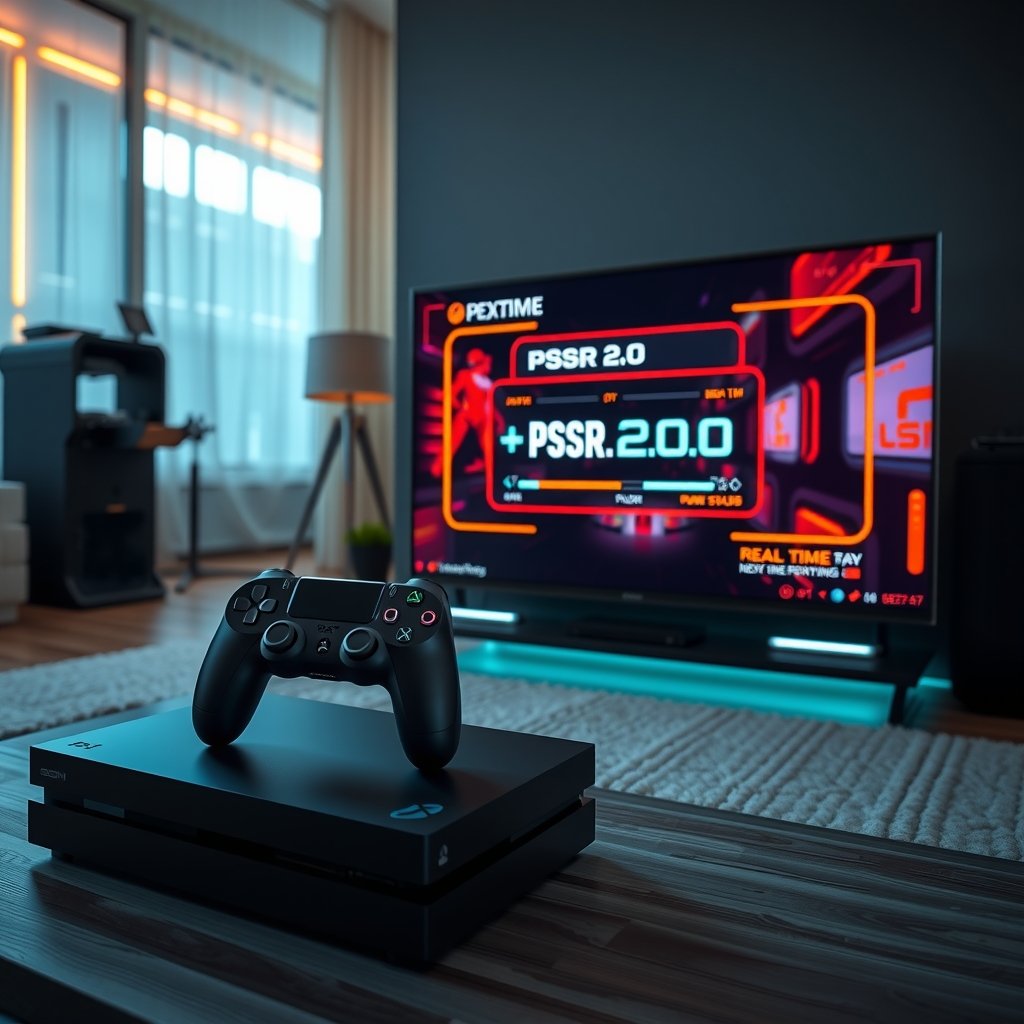
PS5 Pro just turned a corner nobody asked for: the latest beta firmware forces PSSR 2.0 on compatible units, and the changes ripple through upscaling, performance modes and even backward compatibility behavior. If you thought this would be a quiet toggle under system settings, this beta proves otherwise — and you should care because it affects how games look and run in ways that are not obvious from the release notes.
What PSSR 2.0 Means for PS5 Pro Performance
The new PSSR 2.0 is not just another firmware tweak you ignore until patch day; it reworks the post-processing and sampling pipeline that sits between a game’s native render and the pixel you see. On PS5 Pro, PSSR historically acted like a dynamic magnifying glass — upscaling internal resolutions, smoothing edges, and nudging framerates — but 2.0 alters that magnifier’s lens and the way the console decides to use it.
For clarity: PS5 Pro hardware remains the same silicon you bought into. PSSR 2.0 is a system-level decision about how that silicon applies reconstruction and temporal upscaling. You’ll see differences in alias patterns, motion clarity, and, on certain titles, a change in the actual internal resolution budgets. If you follow this stuff, you’ll want to know where your favorite titles land after the update.
Why PS5 Pro owners should watch PSSR 2.0
If you own a PS5 Pro you’ve probably been paying attention to “Pro” mode toggles in games, toggles that promise higher fidelity or higher frames. PSSR 2.0 can silently shift what those toggles do. In some scenarios a game’s “performance” mode now leans harder on temporal reconstruction, letting games hold framerate targets but at the cost of motion clarity or transient detail. That matters when you want crisp crosshair tracking in shooters or stable image clarity in fast racers.
Games are not uniformly impacted. First-party releases and big-budget ports that call specific GPU features can remain largely untouched, while many cross-gen and third-party titles that rely on generic upscalers in the driver see the biggest differences. You should be skeptical of blanket claims like “better everywhere” — the numbers and screenshots are mixed, and there’s a lack of independent benchmarks so far.
How the Beta Forces PSSR 2.0 — Firmware & System Changes
This beta doesn’t just flip a switch on PSSR 2.0; it embeds it deeper into the compositor and the system-level graphics stack. Changes include altered heuristics for when to apply temporal stabilization, new thresholds for motion vectors, and an enforced preference order that favors PSSR logic over some game-provided upscalers.
Practically, the PS5 Pro beta updates the system image pipeline so that when a game signals for a fallback upscaler, the console now prefers PSSR 2.0 in many cases. That means you can no longer rely solely on a developer’s in-game setting to dictate image construction; the console can intercede. That intervention can be helpful, or it can be maddening if you’ve spent time tweaking a game to look right on your screen.
Want some hardware-level comfort while you wait for stable firmware? Veteran players quietly rely on the Collective Minds PS5 Dual controller for extended sessions and macro setups; it’s the kind of peripheral that keeps your play consistent while you run tests and compare builds. Collective Minds PS5 Dual is worth a mention if you’re logging dozens of runs and need the hardware to keep up without drift.
There are also implications for HDMI bandwidth handling and display negotiation. Some TVs that accept specific HDR metadata and EDID flags will see slightly different timing reports to the console, and that interacts with PSSR’s decision-making moments. If you use a capture card or stream your tests, build a test matrix that includes your display and capture chain; results are sensitive to setup.
If you’re shopping around for deals while you wait, we have a roundup of PS5 accessories and target deals on our PS5 target deals page that might help you thread peripherals and storage into a testbench. And if you’re testing graphical effects in third-party titles, check our piece on how AI plays into modern action games at our Stellar Blade AI write-up for context on how developers are juggling fidelity and frame-rate.
Real-World Impact: Upscaling, Frame-Rate and Image Quality
So how does all this feel across actual games? Short answer: inconsistent. Long answer: screenshots and motion tests show stronger temporal filtering, less shimmering on foliage and particle edges in some titles, but also a softer look during motion and more ghosting in others. In titles that already used aggressive temporal anti-aliasing, PSSR 2.0 can double down on temporal reconstruction and cause double-exposure artifacts on fast camera pans.
For controller feel and latency tests, some readers asked whether system-level upscaling introduces input lag. The short answer is that any additional temporal processing can add a frame or two in edge cases, but if you use a low-latency controller like the official Sony PlayStation DualSense Official, you’ll minimize perceived lag. That’s why I recommend testing with a controller you trust when you’re comparing modes; peripherals are part of the overall experience.
| Accessory | Primary Benefit | Why Try It | Best For |
|---|---|---|---|
| Collective Minds PS5 Dual | Custom mapping & stable ergonomics | Extended testing sessions | Experimenters |
| Sony PlayStation DualSense Official | Native haptics & low-latency | Reference controller for tests | Competitive players |
| NEWDERY PS5 Controller Charger | Fast dock charging | Keep batteries topped between runs | Streamers & testers |
| PS5 Controller Charging Station | Two-controller dock | Quick swap for co-op or tests | Households & reviewers |
Charging and swap time matter when you’re doing repetitive captures. I recommend having a dependable charging dock like the NEWDERY PS5 Controller Charger or a tidy dual dock such as the PS5 Controller Charging Station on hand. They aren’t glamorous, but they keep you honest and reduce session interruptions while you run comparison passes.
One hard takeaway: if you care about motion clarity for competitive play, test individually rather than trust “Pro” branding. If you care about overall fidelity at rest — screenshots, static composition — PSSR 2.0 often helps. If the middle ground matters, you’ll need real motion tests to decide.
How to Test the Beta (Step-by-Step) and Reproduce Results
Ready to run your own lab? You should be. Do this on a consistent setup: identical HDMI chain, same TV or monitor, same capture card, and the same controller. Keep ambient settings consistent too; HDR and contrast have knock-on effects on perceived sharpness.
- Back up your console and enroll in the beta program using the system menu. This is reversible but proceed cautiously.
- Choose three titles that cover different engines: one first-party, one Unreal Engine 4/5 open-world, and one cross-platform shooter. That spread highlights differences between engine-level upscalers and system-level interventions.
- Record a baseline run on the current public firmware with identical scenes: a fast camera pan, an action-heavy firefight, and a posterity screenshot at 4K. Capture at the highest quality your card allows.
- Update to the beta and repeat the exact same runs. Keep controller input as identical as possible — if you have macros on a Collective Minds pad, record the same sequence twice for repeatability.
- Compare captures frame-by-frame and use pixel-difference tools if you can. Pay attention to temporal artifacts such as ghosting and trailing, and to subtle aliasing differences on fine geometry like foliage and wire mesh.
- Record frame-times with a capture overlay or external framerate tracker. Temporal upscalers can hide microstutter by smoothing, so look at the raw frame-time variance as well as average FPS.
When you publish results, link to the hardware used and include capture settings. If you need references for testing methodology, IGN has a useful primer on how to capture and evaluate image quality that’s worth a read; it’s not a one-size-fits-all approach, but it helps you avoid measurement mistakes when differences are subtle.
Don’t forget to test with different controllers and charging states. A dying battery can change stick behavior and your inputs in ways that look like performance shifts. Using trustworthy accessories makes your comparisons less noisy, which is why I often recommend swapping controllers with a stable station like the PS5 Controller Charging Station between runs, and keeping a spare input like the Collective Minds PS5 Dual ready for consistency checks.
Finally, document everything. Post your scene names, timestamps, and raw footage links. The community can iterate on your tests, and it helps developers see reproduction steps if a fix is needed.
Developer, Modder and Community Reactions
Reactions are blunt and varied. Some developers applaud the system smoothness and say PSSR 2.0 helps standardize quality across displays. Others are annoyed because the console can now override decisions they make in-engine. Modders and texture pack authors are mostly skeptical; deeper temporal reconstruction complicates their fixes and introduces transient artifacts that are hard to predict.
Community testing groups on forums and Discords have started coordinated runs, but there’s a fragmentation problem: a lot of the early posts show cherry-picked scenes that favor the update. That’s why the lack of systematic benchmarking is a real problem — the sample bias makes it hard to parse what’s general versus what’s situational. If you care about a particular title, join those testing groups and run the same scenes they do; only then can you see whether your setup aligns with theirs.
For those shopping bundles or deciding whether to upgrade accessories while the dust settles, remember we also cover bundles and add-ons in unrelated corners — for example our MTG and Marvel bundle coverage which is handy if you’re buying gifts while you wait for stable firmware. That’s a weird crossover, I know, but if you’re juggling holiday shopping and firmware testing, it helps to centralize links.
Developers have the final say on per-title fixes, and Sony can iterate on PSSR heuristics if enough evidence accumulates. That’s the practical path forward: capture, reproduce, and petition. If you’re a developer reading this, share test scenes. If you’re a player, test and post your captures with timestamps and equipment lists. That’s how we get useful data.
Frequently Asked Questions
What exactly does PSSR 2.0 change on PS5 Pro?
PSSR 2.0 changes how the system applies temporal reconstruction and upscaling, shifting thresholds and preferring system-level processing in some cases. That can alter perceived sharpness, motion clarity, and sometimes internal resolution choices.
Will PSSR 2.0 lower my framerate?
Not usually — it often prioritizes framerate stability by using more temporal filtering. But that can mean a softer image or added ghosting, so FPS might stay steady while visual fidelity shifts.
Can I opt out of the beta if I don’t like the changes?
Yes, you can leave the beta, but rollbacks and saves might be subject to the usual caveats; always back up before enrolling. If you test, keep records so you can show differences when reporting issues.
Should I change my controller or charging setup for testing?
You should use reliable controllers and keep batteries topped up to avoid input inconsistencies. Official DualSense pads and simple charging docks reduce noise in tests so you can focus on visual and frame-time differences.
Where can I find community test scenes and results?
Look to platform subreddits and dedicated Discord testing groups; they often publish consistent test runs and capture links. Also check coverage from outlets that run methodical captures to compare results if you want a second opinion.